The database
The Database tab (Figure 2) lists the Calibers, Projectiles and Propellants that are available for loads. The filter field searches all columns; click a column header to sort.
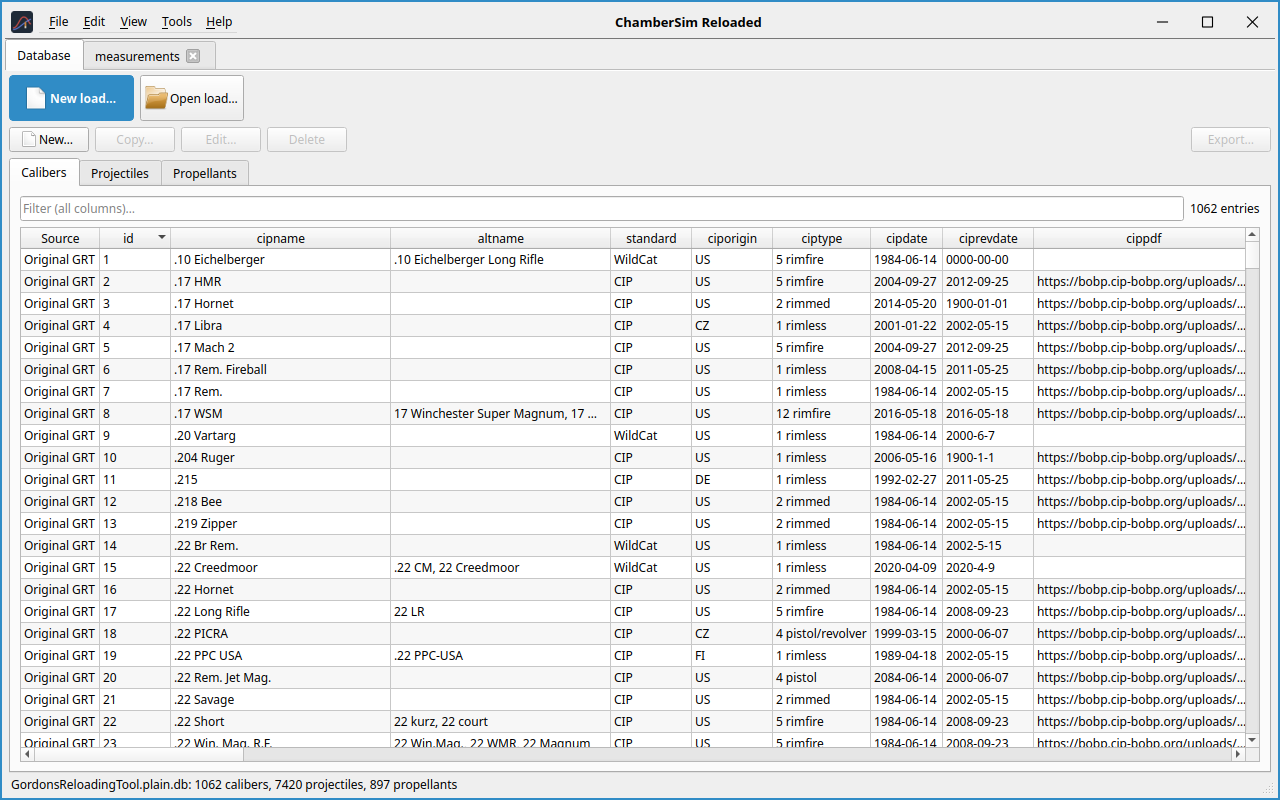
Where the records come from
The list is one view made of up to three sources, shown in the Source column:
-
The project database: calibers, projectiles and propellants that are built into the program.
-
Your own records, stored in the file
ChamberSimReloaded.dbin the application data folder. Everything you create or copy is stored here. -
Optionally the records of Gordon’s Reloading Tool (Original GRT). The original’s database is encrypted and must first be converted to a plain copy (Section "Using the originals database"); choose that copy in File → Settings → Database. It is only read, never changed.
Using the original’s database
Gordon’s Reloading Tool keeps its calibers, projectiles and propellants
in an encrypted SQLite database (GordonsReloadingTool.db). ChamberSim
Reloaded does not decrypt it by itself and does not ship one. A helper
script makes a plain (unencrypted) copy that you then choose in the
settings. The program and its database stay unchanged; only the copy is
converted. You need your own installation of Gordon’s Reloading Tool.
How it works
The script starts a scratch copy of the original program. As soon as the original has unlocked its database, the script asks it to remove the encryption from that copy. Nothing is compiled and no key is typed in.
Linux
-
Unpack the Linux version of Gordon’s Reloading Tool. Its folder contains
GordonsReloadingTool,libs/andGordonsReloadingTool.db. -
Copy
tools/grt_decrypt_db.shfrom the ChamberSim Reloaded sources into that folder. -
Open a terminal in that folder and run
./grt_decrypt_db.sh -
The script checks what is needed and, after asking, installs what is missing with
sudo: the debuggergdb, the 32-bit GTK 2 runtime that the original needs and, when no desktop is running, a virtual display. Debian/Ubuntu/Mint, Fedora, Arch/Manjaro and openSUSE are supported. -
After a few seconds the file
GordonsReloadingTool.plain.dbappears in the same folder.
Options: -o FILE (name of the output file), -y (install without
asking), -c (only report what is found and missing, change nothing),
--headless (use a virtual display, no window appears), -t SECONDS
(give up after this time, default 90) and -h (help).
Windows
-
Copy
tools/grt_decrypt_db.cmdandtools/grt_decrypt_db.ps1into the folder of Gordon’s Reloading Tool (next toGordonsReloadingTool.exe). -
Double-click
grt_decrypt_db.cmd. After asking, it installs Python (withwinget) and the Python packagefridainto a private environment under%LOCALAPPDATA%\(\backslash\)ChamberSimReloaded. -
When it has finished,
GordonsReloadingTool.plain.dbis in the same folder.
In PowerShell the options are -Out FILE, -Yes, -Check (report
only) and -Timeout SECONDS.
Using the copy
Open File → Settings → Database, choose
GordonsReloadingTool.plain.db as the Original database. The status
line at the bottom then shows the file name and the number of calibers,
projectiles and propellants, and the records appear in the Database tab
with the source Original GRT. They are read-only; to change one, make a
copy. You can also start the program with
-d GordonsReloadingTool.plain.db.
Note
Do not distribute the plain copy. It is for your own use with your own copy of Gordon’s Reloading Tool. If the original program is updated, make a new copy.
Working with records
New…
adds a new record. Fill in the fields; labels show the unit of each
field.
Copy…
adds a changed copy of the selected record. A double click on a record
shows it and offers the same.
Edit…
changes the selected record.
Delete
removes the selected record. Load files that use it keep their values.
Export…
saves the record as a file, to contribute it to the project’s database.
Import bullets
(Projectiles only) adds the bullets of a manufacturer's bullet file
(.csrbullets, or a plain .json file) to your own records after
asking for confirmation. The format is described in
docs/BULLET_FILE.md.
Only your own records can be edited or deleted. To change a project or original record, make a copy.
For propellants you can attach an overview photo and a detail photo (Choose file…, with the scale in px/mm if you know it).
The Projectiles list has a Validated column. A green check mark means that the bullet's length was measured on the bullet, published by the manufacturer (bullet file or product list, e.g. Sax, Lapua, Berger) or checked against the original's database; a red cross means it has not been validated (the length may be measured on a product photo or be an estimate; see the record's description).