Measurements
The Measurements tab holds your own chronograph and pressure data. It is stored in the load file and used to compare the real load with the simulation and to fit the powder model.
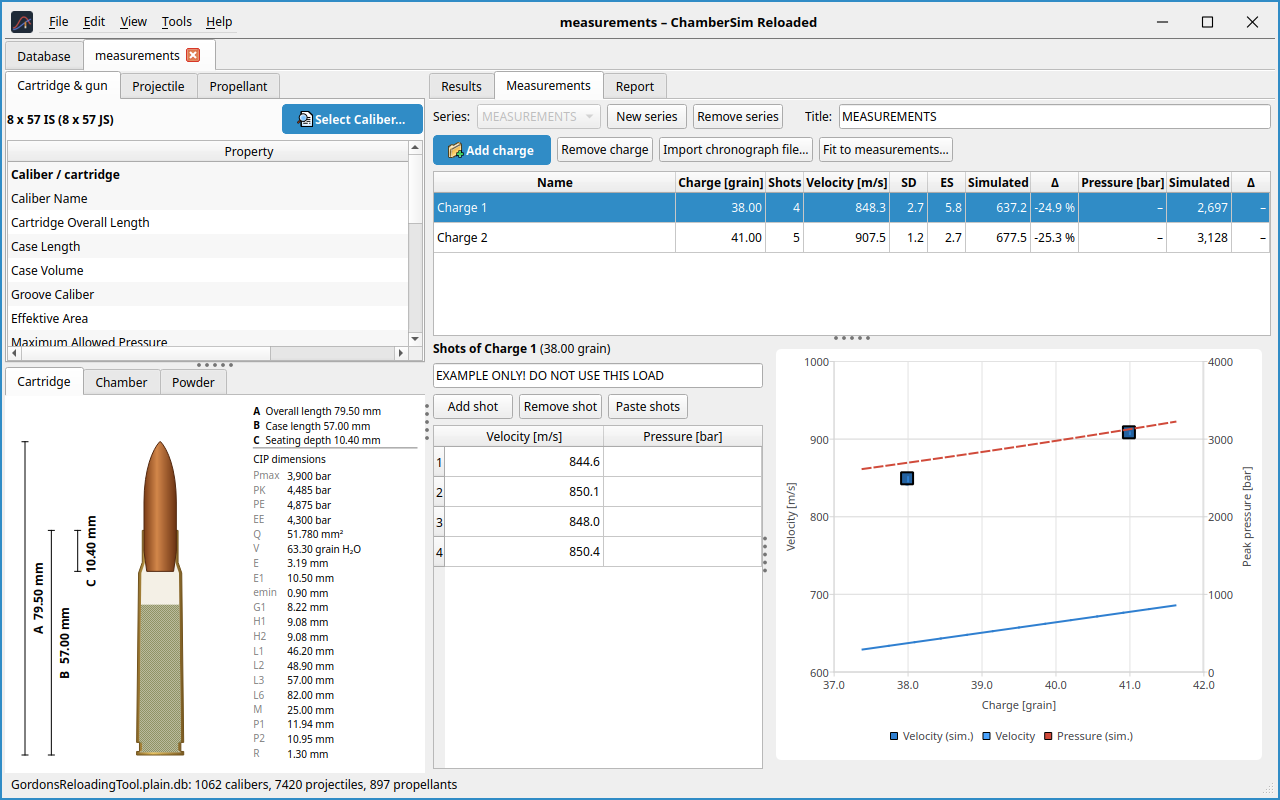
Series and charges
A load can have several series (for example one per range day or rifle). New series starts an empty series, Remove series deletes the shown one, and the title field names it. Inside a series:
Add charge
adds a charge (the load’s charge, or the next ladder charge). Add ladder
charges adds every ladder charge that is not listed yet.
Remove charge
removes the selected charge with all its shots.
The table has one row per charge: name, charge, number of shots, mean velocity, SD, ES, the simulated velocity and the difference (\(\Delta\)), then the same for the peak pressure.
Shots
Select a charge and enter the velocity (and pressure, if measured) of each shot. Add shot, Remove shot (Del) and Paste shots (one shot per line, velocity and optionally pressure) help. A note field per charge holds rifle, chronograph and conditions.
Importing chronograph files
Import chronograph file… reads Garmin Xero files (the .fit file of
the C1 Pro, or the CSV exported by the Garmin Xero app, in any language
of the app), MagnetoSpeed CSV files and Labradar Report.csv
files. Missed shots (speed 0) are left out. These files do not contain
the powder charge; type it for each series in the import dialog.
Statistics and chart
The program computes the mean, the standard deviation (SD) and the extreme spread (ES, fastest minus slowest) of the velocity. The chart shows the measured values and the simulated curve over the charge; hover the lines to read values.
Fit to measurements
Fit to measurements… changes the propellant’s model values until the simulation agrees with your data.
Safety
The result is only as good as your measurements and the powder data. Use it for planning, not as a replacement for the manufacturer’s data.
-
Prepare the load. Enter a measured case volume and the real bullet and cartridge lengths.
-
Enter measurements. The more different charges, the better: at least 5 shots per charge, 2 or more charges, ideally also 2 or more bullet weights or calibers.
-
Open the dialog and choose the values to fit. The default depends on the data: \(B_a\) alone for fewer than 3 charges, \(B_a\) and \(a_0\) for 3 to 5, all four (\(B_a\), \(a_0\), \(z_1\), \(z_2\)) for 6 or more charges from at least two load files.
-
Click Fit. The dialog lists velocity and pressure of every charge before and after the fit and the rms error. Read the warnings (for example: the case volume is only the database value, or there are fewer charges than values).
-
Check the result: after the fit, velocity differences should be small (below about 2 %).
-
Apply to this load puts the values into this load only. Save as own propellant… stores a new record “name (fitted)” in your own database, which you can then select in any load. With the Physical Model and a project powder, the fit changes the load’s physical burn values instead and keeps them in the load.