The main window
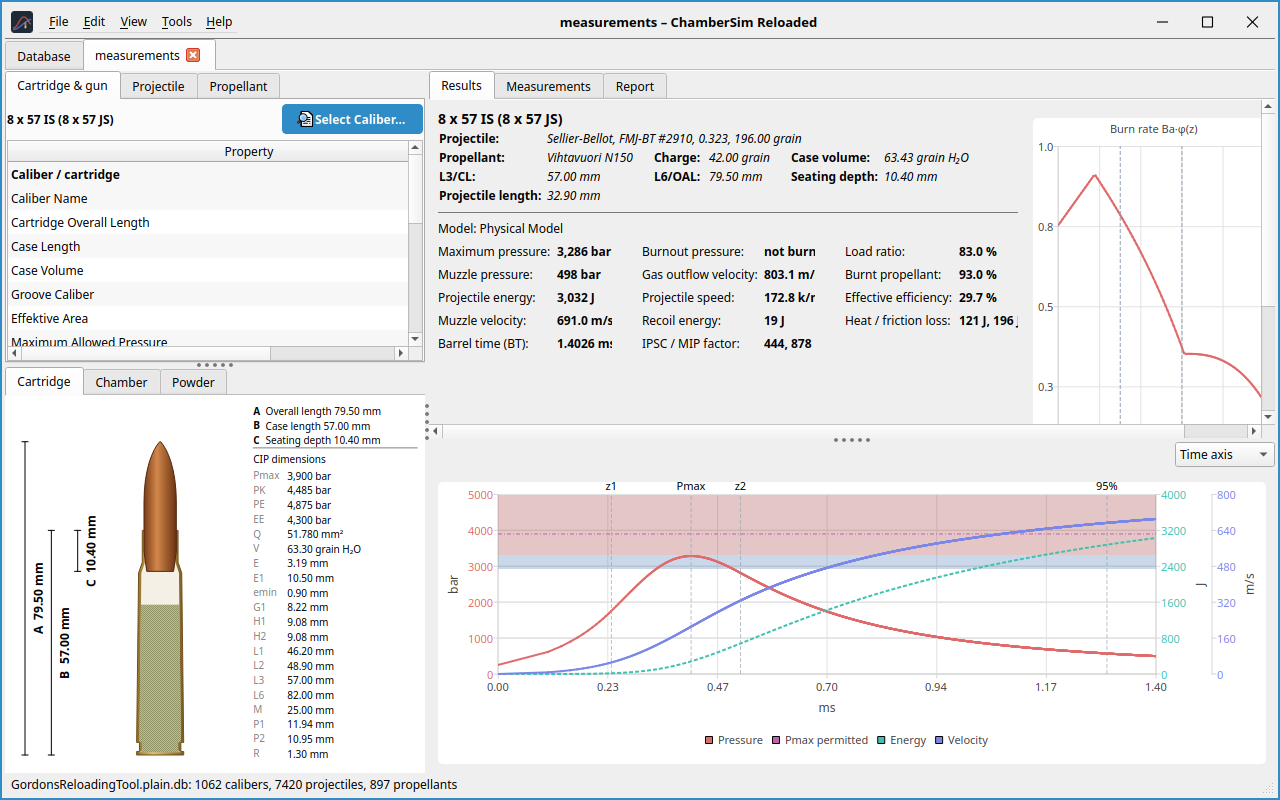
The window has a menu bar and, below it, a row of tabs. The first tab, Database, is always present; every open load gets a tab of its own. On Linux the program draws its own title bar with the menu in the title row (File → Settings → Appearance).
Menus
New load… (Ctrl+N), Open load… (Ctrl+O), Open recent, Save (Ctrl+S), Save as…, Print preview…, Print… (Ctrl+P), Export report as PDF…, Overlay reference result… (Ctrl+R), Clear reference overlay, Settings… (Ctrl+,) and Quit.
Undo (Ctrl+Z) and Redo (Ctrl+Shift+Z or Ctrl+Y) for the load that is shown; see Section 5.6.
Theme (system default, light, dark) and Language. A language change takes effect after a restart.
Burn rate table… and Unit converter….
User manual (F1), which opens this manual as a PDF, and About ChamberSim Reloaded…
Layout
The panels are separated by splitters (the small dotted handles) that you can drag. The program remembers the splitter positions, the column widths of the property tables and the window geometry.